Laboratory: Quality Check
The workplace of an independent surveyor: open the truck, enter the quality parameters, save. Section Laboratory, route /surveyor.
How the process works
A single truck visit to a terminal is seen by three parties, and each works in its own section of the platform. The steps run in sequence: until whoever’s turn it is takes their step, the truck waits.
| # | Stage | Trader / farmer | Terminal | Laboratory |
|---|---|---|---|---|
| 1 | Volume request | creates it | — | — |
| 2 | Truck nomination | nominates the truck | sees “Scheduled” | the truck appears in your list |
| 3 | Truck arrives | — | receives it on site | — |
| 4 | Quality parameters | — | does not enter them | you enter them |
| 5 | Quality out of specification | allows or rejects | waits | — |
| 6 | Weighing and closing | — | weighs and closes | — |
You enter the process only when the cargo owner has assigned an external laboratory to their request. Without that, the sample is taken and the parameters entered by the terminal itself — that is, by the receiving party. Your role exists so that the assessment is made by a third party.
Once a laboratory is assigned:
- you enter the quality parameters, not the terminal;
- the “Enter quality” step disappears for the terminal — all it has to do is weigh the truck;
- in the visit details the terminal sees the “The laboratory checked the quality” banner.
This page is for the surveyor. The other two parties need their own: Stock Requests and Voyages — for the trader or farmer · Terminal Passes — for the elevator or transshipment facility.
Your workplace
A surveyor account has limited access: only the Laboratory section, profile settings and company creation. It does not see trading, businesses or stocks.
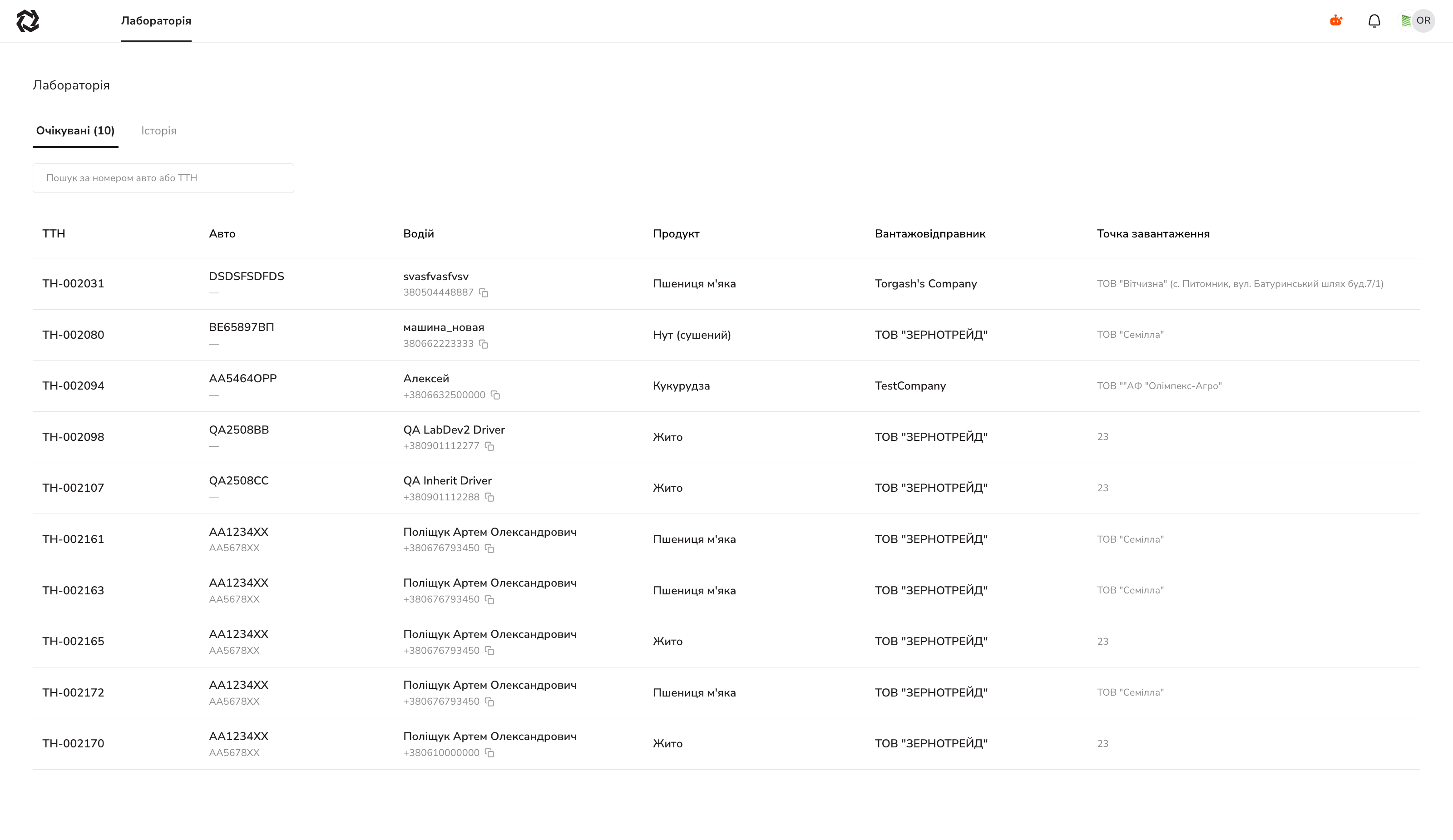
| Tab | What is inside |
|---|---|
| Expected | Trucks whose parameters have not been entered yet |
| History | Processed trucks, with the completion date |
The number in brackets is how many trucks are waiting. Search works by plate or waybill number.
Columns: Waybill · Truck (with trailer) · Driver (name and phone, copied on click) · Product · Consignor · Loading point.
Trucks land here by themselves as soon as the trader nominates one against a request that names your laboratory. You cannot add a truck manually — nor decline one: if a truck is not in the list, no laboratory was assigned to that request.
Entering the parameters
Clicking a row opens “Appointment details”.
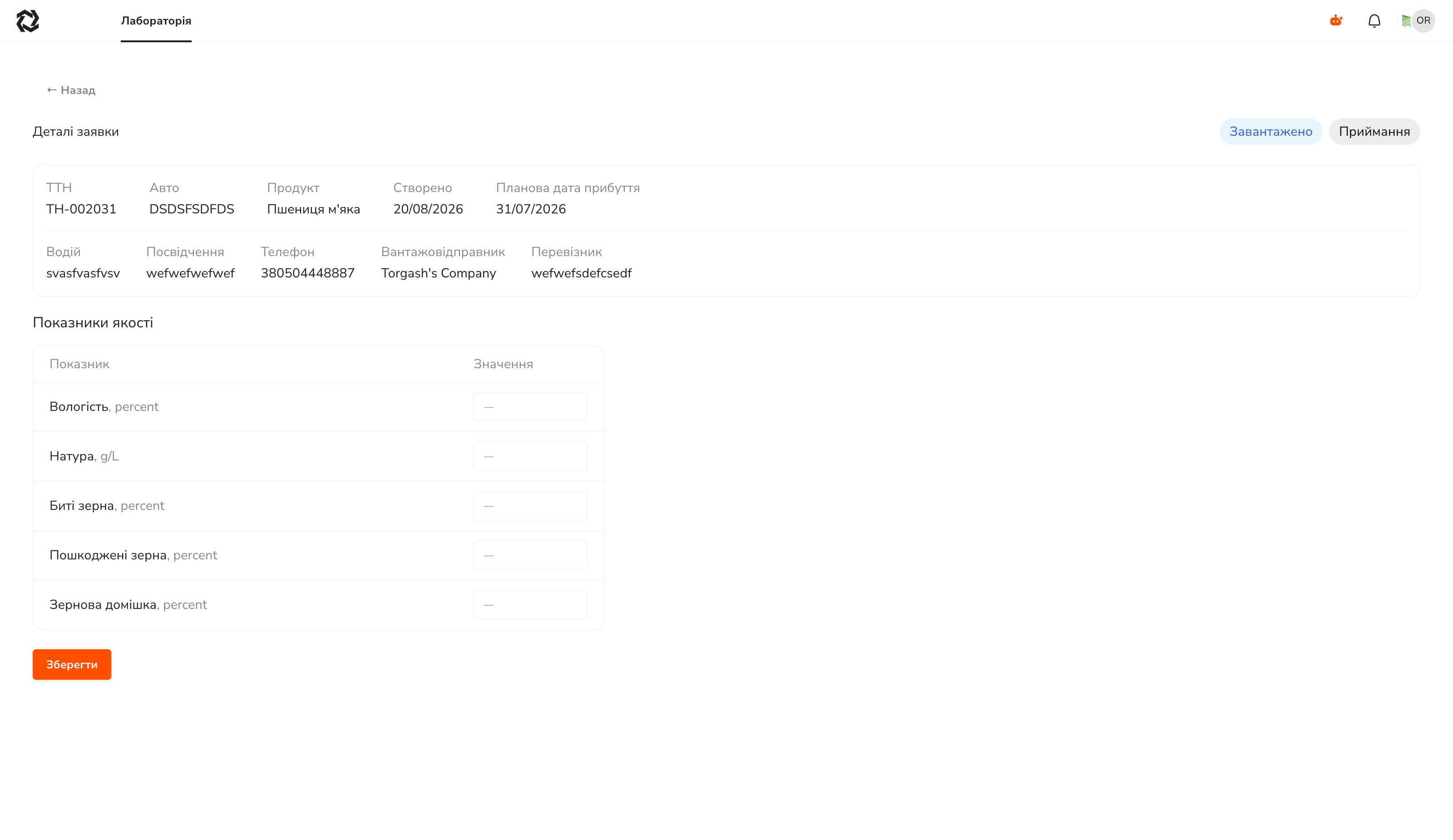
At the top are two badges: the truck’s status and the operation type (Receiving / Loading / Laboratory check).
A card with the data: waybill, truck, product, creation date, planned arrival date, driver, licence, phone, consignor, carrier.
Below it is the “Quality parameters” table: the parameter with its unit in the left column, the value field in the right. The set of parameters comes from the trader’s request — these are the limits they agreed with the terminal.
The “Save” button → “Results saved successfully”.
If you press “Save” without filling in a single value, a warning appears: “No parameters have been filled in. Save an empty result?” — with a “Save” / “Cancel” choice.
What happens after saving
The results land on the truck immediately and are visible to all three parties. The system compares them against the request’s limits itself.
| Result | Truck status | What happens next |
|---|---|---|
| Parameters within the specification | Checked by laboratory | The terminal enters weights and closes the visit |
| Parameters out of specification | Awaiting trader decision | The trader allows it (choosing a storage) or rejects the truck |
| The trader allowed it despite the mismatch | Quality confirmed | The terminal enters weights |
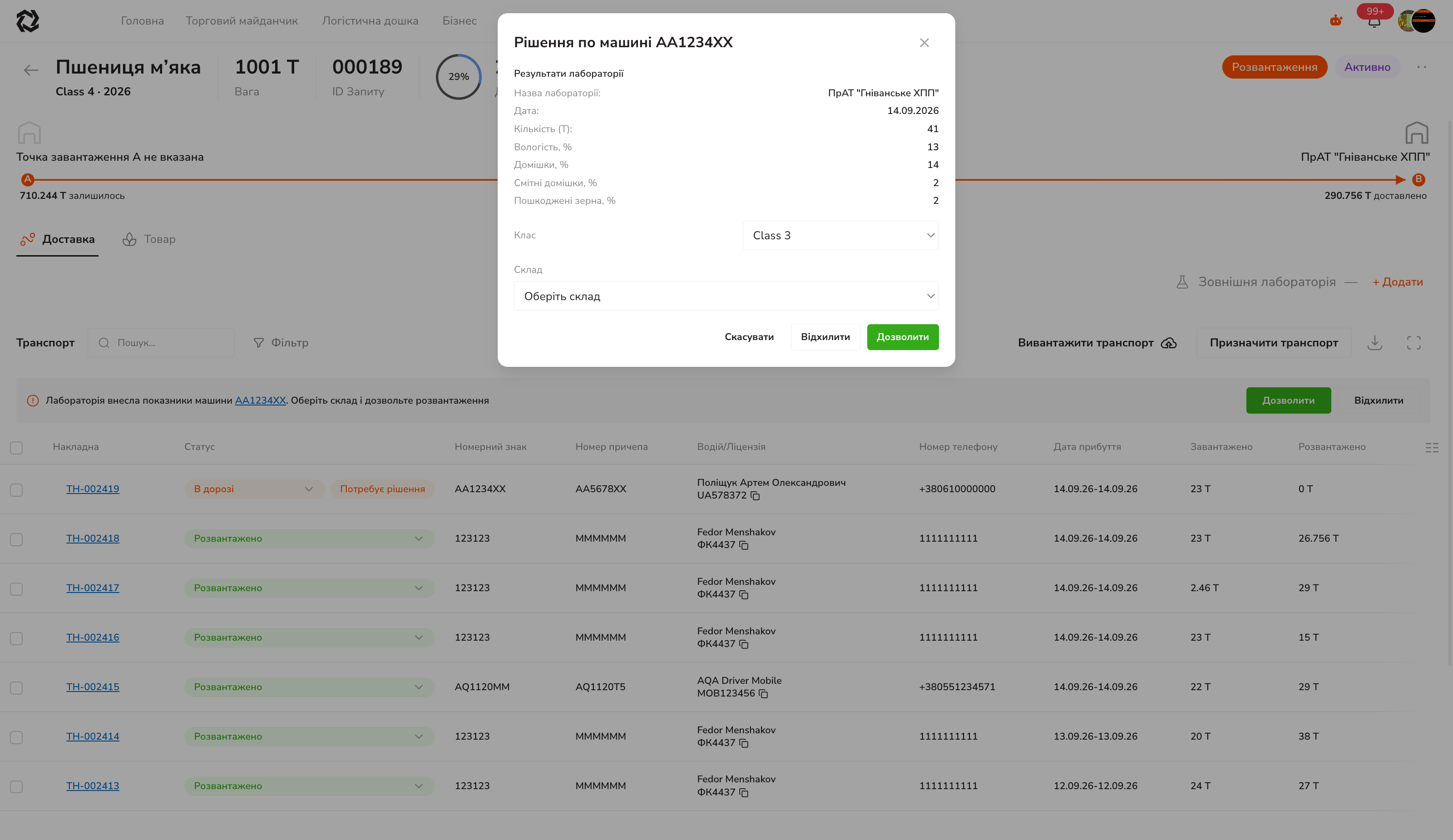
The trader sees the same figures in their “Truck decision” dialog — the “Laboratory results” block: the laboratory’s name, the date, the quantity the samples were taken from, and every parameter entered. The class you assigned can be changed by the trader if they disagree with it.
Statuses in the list
The left column is what you see. The right is what the other two parties see at that moment.
| Status on your side | Meaning | At the terminal / for the trader |
|---|---|---|
| Waiting | The truck is created, processing has not started | Scheduled / Nominated |
| Loaded | The truck’s data has been received | Scheduled / In transit |
| In progress | Processing at the terminal is under way | In progress / In transit |
| Accepted | The truck has been accepted | At terminal / In transit |
| At port | The truck is on the premises | At terminal / At port |
| Loading / Unloading | The cargo operation is under way | In progress / In transit |
| Checked by laboratory | Parameters entered and within the specification | To weighing / In transit |
| Awaiting trader decision | Parameters out of specification | Trader’s decision / Needs decision |
| Quality confirmed | The trader allowed acceptance | To weighing / In transit |
| Returned | The trader refused | Returned / Returned |
| Rejected | The truck was rejected | Rejected / Rejected |
| Integration error | Could not synchronise with the external system | — |