Terminal Passes
The workplace of an elevator or transshipment facility: receive the truck, enter quality, weigh it, close the visit. Section Transport Appointments, route /transport-appointments.
How the process works
A single truck visit to a terminal is seen by three parties, and each works in its own section of the platform. The steps run in sequence: until whoever’s turn it is takes their step, the truck waits.
| # | Stage | Trader / farmer | Terminal | Laboratory |
|---|---|---|---|---|
| 1 | Volume request | creates it | — | — |
| 2 | Truck nomination | nominates the truck | you see “Scheduled” | sees the truck in its list |
| 3 | Truck arrives | — | you receive it on site | — |
| 4 | Quality parameters | — | you enter them if no lab is set | enters them if assigned |
| 5 | Quality out of specification | allows or rejects | you wait | — |
| 6 | Weighing and closing | — | you weigh and close the visit | — |
Step 4 is a fork. By default you take the sample and enter the parameters yourself. If the cargo owner assigned an external laboratory to their request, an independent surveyor enters the parameters and all you have to do is weigh the truck.
This page is for the terminal. The other two parties need their own: Stock Requests and Voyages — for the trader or farmer · Laboratory: Quality Check — for the surveyor.
What a pass is
A pass (visit) is one arrival of one truck at your site for a specific operation.
The cargo owner calls the same object a voyage, and it lives inside their volume request. Statuses are shared both ways: what you change on your side, the trader sees in their table, and the other way round.
| Entity | Whose | About what |
|---|---|---|
| Request | The trader | Volume: “1,000 t of wheat will arrive” |
| Voyage | The trader | One truck inside that volume |
| Pass | Yours | The same visit, but with your statuses and actions |
In the interface the section is still called “Transport Appointments” and the records themselves “Appointments”. Those are the labels in the screenshots below. In the documentation they are called passes, so as not to confuse them with the trader’s volume request.
Where passes come from
| Source | How it looks |
|---|---|
| Trader nomination | The trader added a truck to their request — a “Scheduled” row with a waybill number appears for you |
| Integration | Passes are created automatically from an external system |
A pass is not created manually on desktop — there is no button in the list. The form is available on mobile: “Transport Appointments” → “Create appointment”.
Main screen
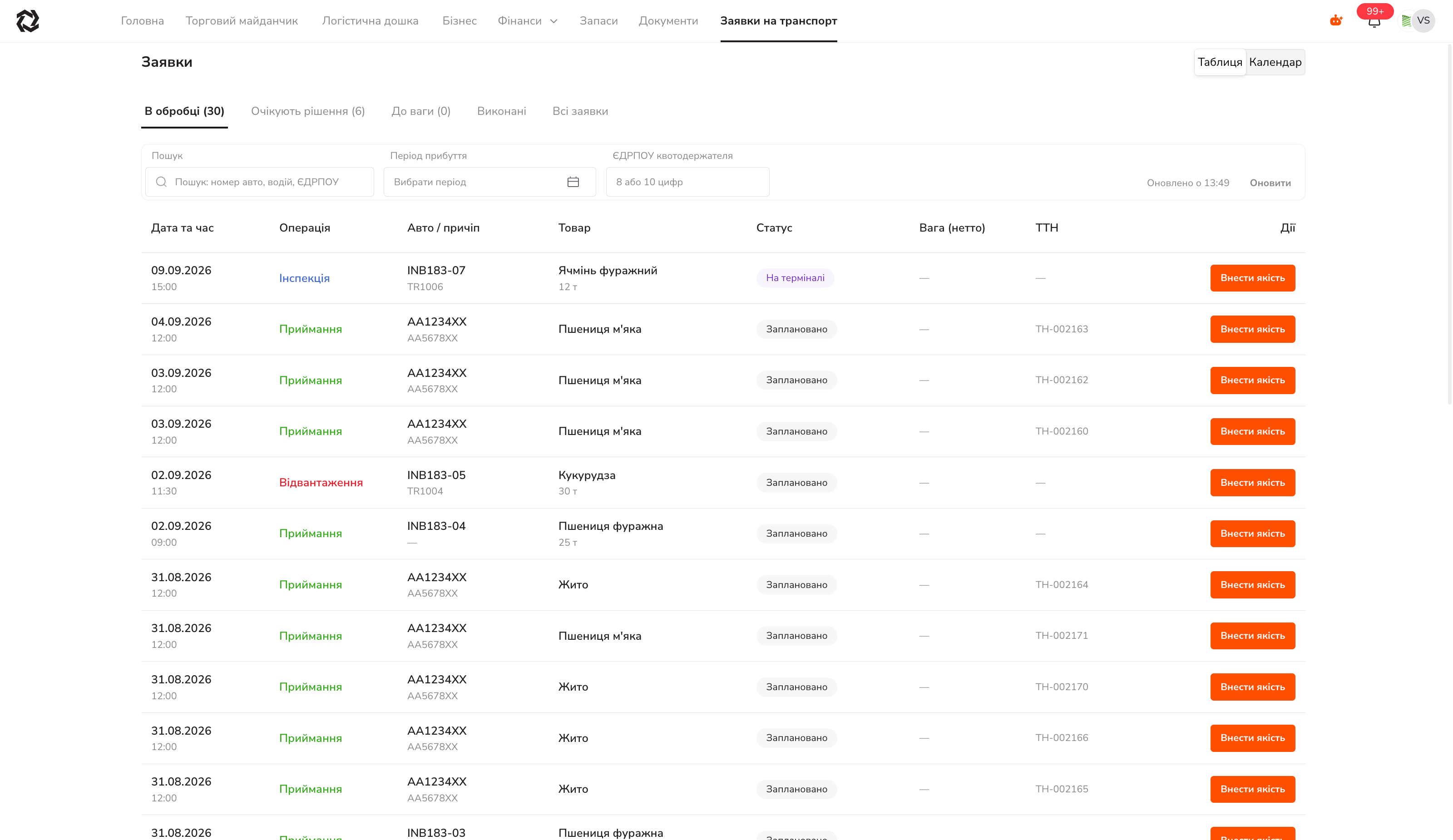
| Tab | What is inside | Your action |
|---|---|---|
| In progress | The truck is on the way or already on site, nobody has entered quality | ”Enter quality” |
| Awaiting decision | Quality did not match the specification | nothing, you wait |
| To weighing | Quality accepted — by the laboratory or the trader | ”Enter weights” |
| Completed | The pass was closed with weights | review |
| All appointments | Everything together | searching history |
The number in brackets is how many passes are on the tab.
Filters: Search (plate, driver, EDRPOU), Arrival period, Quota holder EDRPOU (8 or 10 digits), and the Refresh button with a timestamp.
If a stage holds too many records, “Showing the first N appointments of the stage. Narrow the period to see the rest” appears at the bottom.
Operation types
| Operation | Colour | What it is |
|---|---|---|
| Receiving | green | The truck brought goods to you |
| Shipping | red | The truck is taking goods away |
| Inspection | blue | A surveyor’s visit to take a sample |
Pass statuses
The left column is what you see; the right is what the trader sees in their voyage table at that moment.
| Status on your side | Meaning | Voyage for the trader |
|---|---|---|
| Scheduled | The pass is created, the truck has not arrived yet | Nominated / In transit |
| At terminal | The truck is on site | In transit |
| In progress | Processing is under way | In transit |
| Trader’s decision | Quality is out of specification, waiting for the cargo owner | Needs decision |
| To weighing | Quality accepted, weighing can start | In transit |
| Completed | Weights entered, the pass is closed | Unloaded |
| Returned | The trader refused, the truck is turned away permanently | Returned |
| Rejected | The pass was rejected | Rejected |
| Sync error | Could not synchronise with the external system | — |
Calendar
The Table / Calendar switch in the top right. Modes: month, week, day.
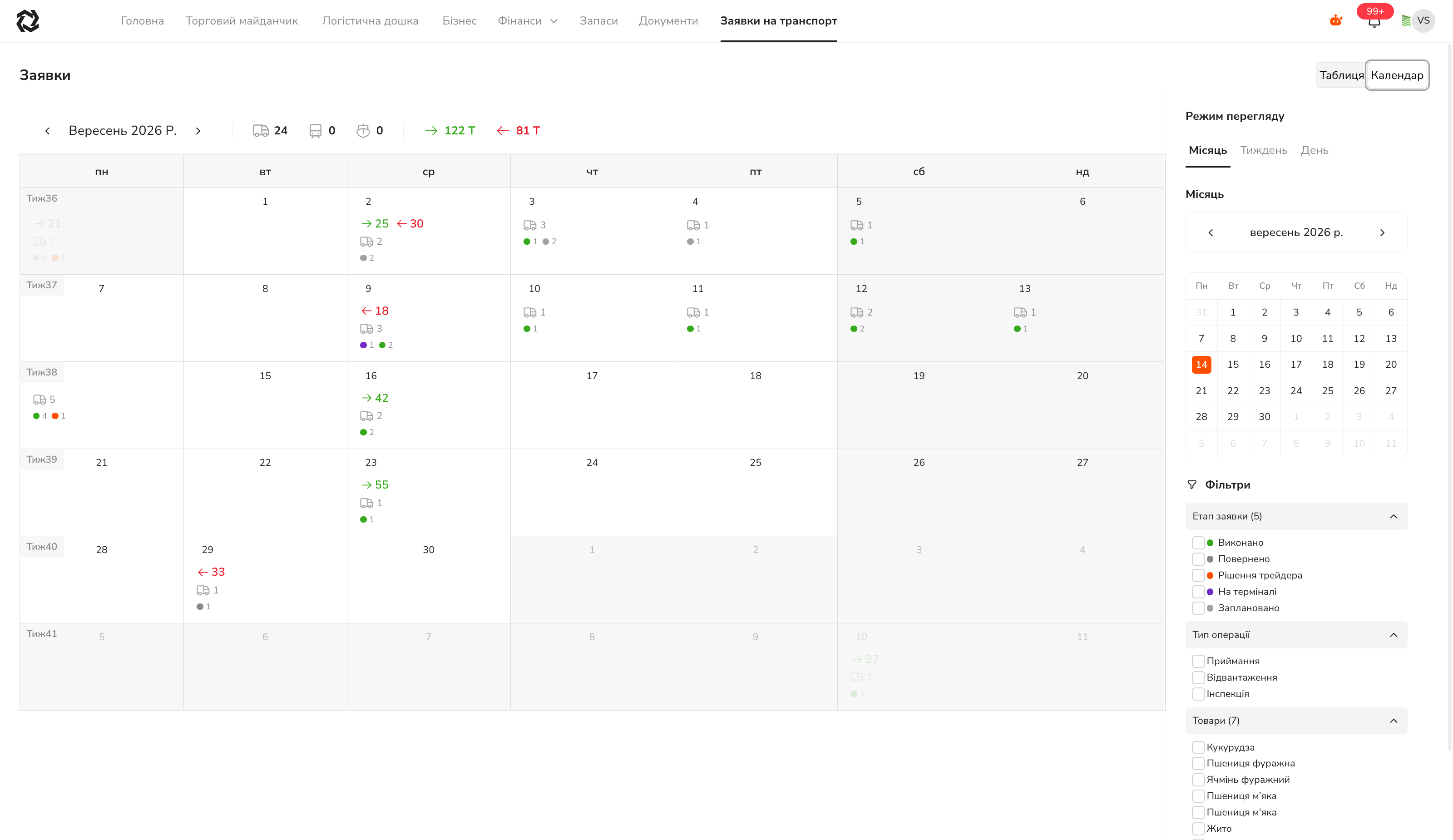
- The header holds counters for the period: trucks, railcars, vessels, and tonnage for receiving (→) and shipping (←).
- A day cell shows the number of vehicles and colour markers for the stages.
- The right-hand panel filters by stage, operation type, commodities, quota holders and quotas.
- The mode and the date are kept in the page address — the link opens in the same view.
Pass details
Click a table row.
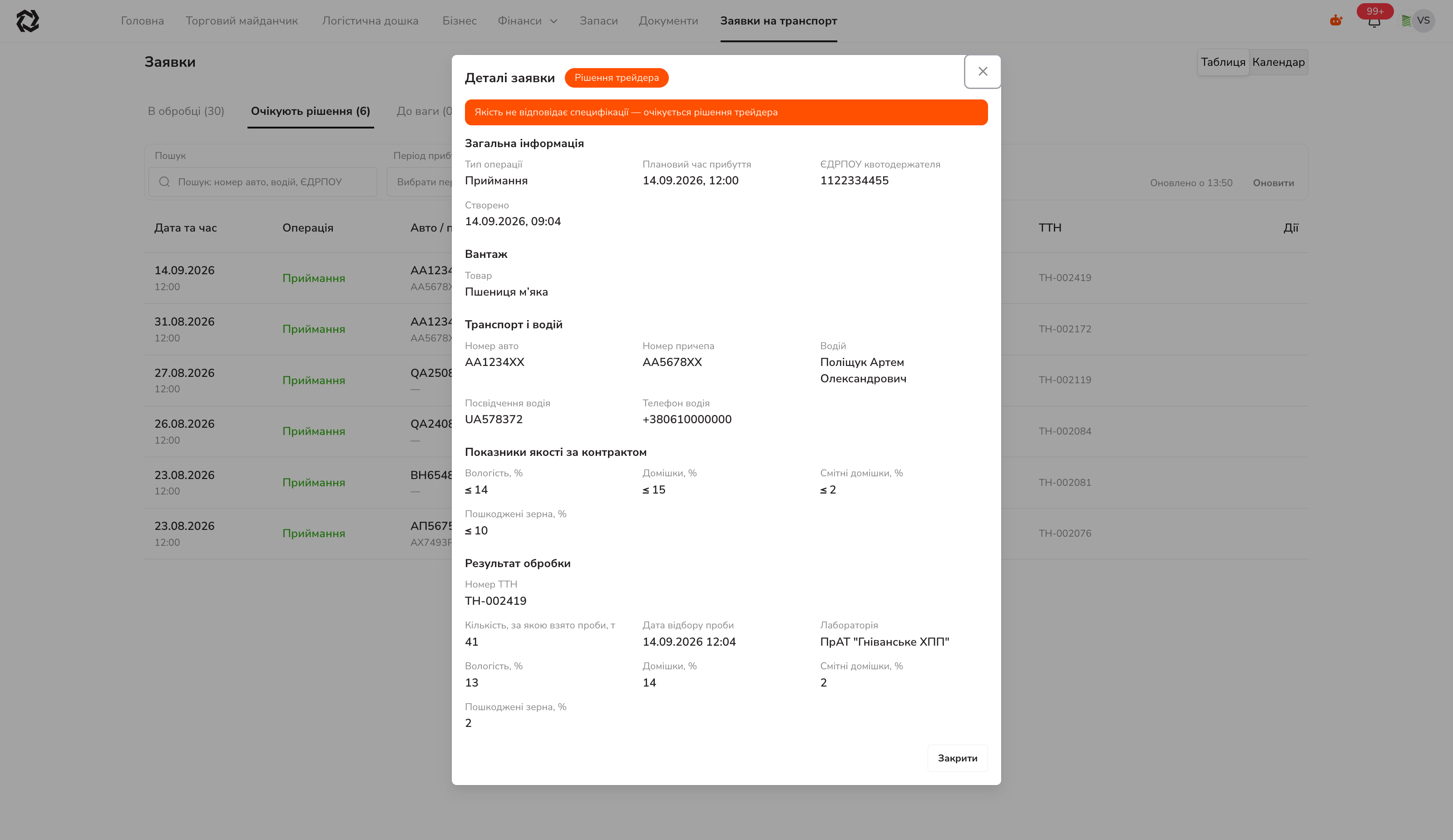
Sections: General information · Cargo · Transport and driver (with a link to documents, if attached) · Contract quality parameters · Processing result.
At the top is a hint banner:
| Banner | When |
|---|---|
| ”Quality does not match the specification — awaiting trader decision” | After quality was entered outside the limits |
| ”The trader allowed acceptance despite the quality mismatch” | After the trader pressed “Allow" |
| "The laboratory checked the quality — it matches the specification” | An external laboratory entered quality within limits |
Step 1 — enter quality
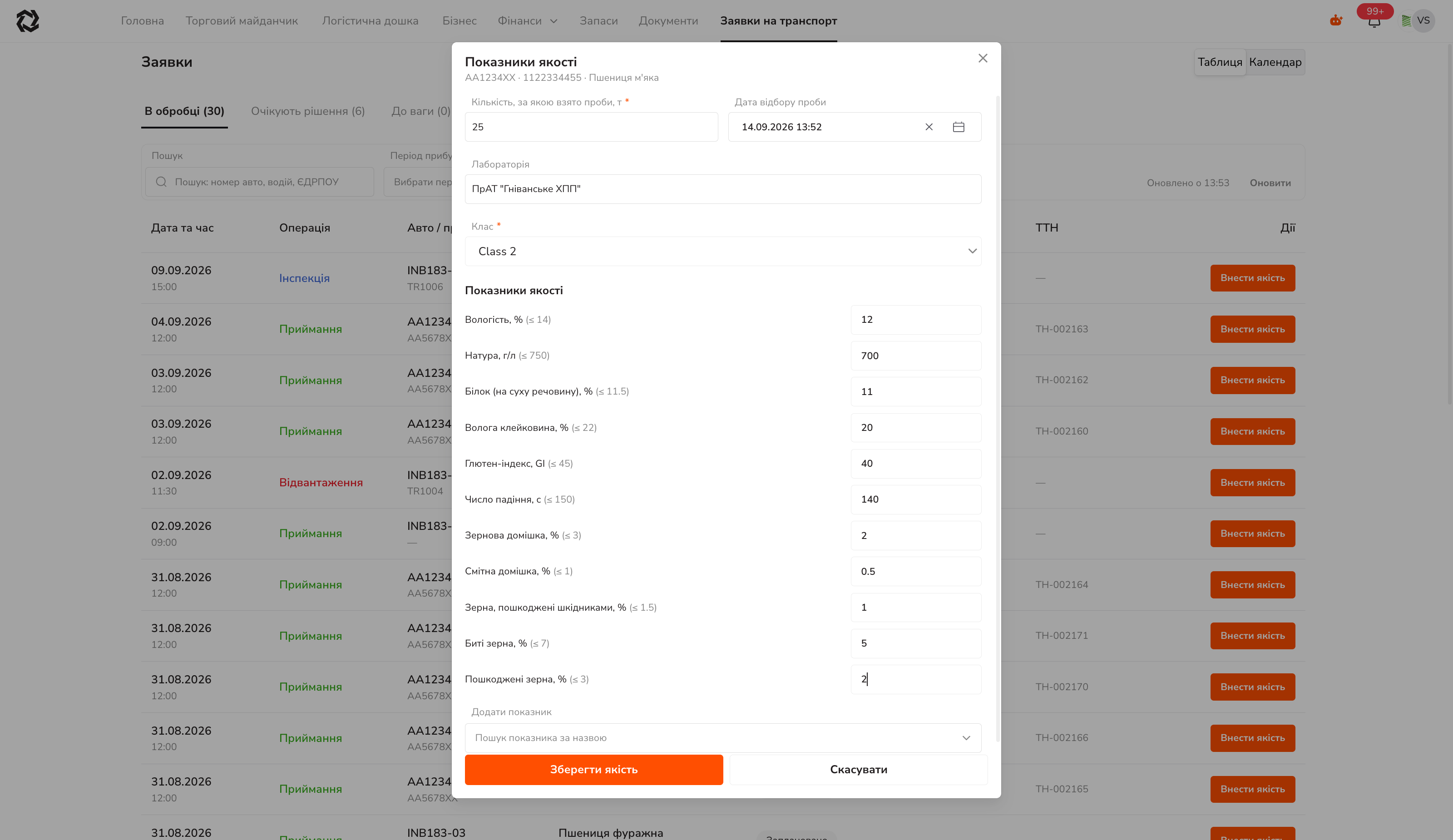
| Field | Required | Note |
|---|---|---|
| Quantity sampled, t | yes | — |
| Sampling date | no | The current time is filled in |
| Laboratory | no | Your terminal by default |
| Class | yes | The class the truck was assigned to |
| Quality parameters | no | The contract limit is shown in brackets: Moisture, % (≤ 14) |
| Add parameter | — | Search by name if you need to enter something not in the list |
The “Save quality” button — after that the system compares what was entered against the contract:
| Result | Message | Where the pass moves |
|---|---|---|
| Within specification | ”Quality matches the specification — enter weights” | To weighing |
| Out of specification | ”Quality does not match the specification — the trader decides” | Awaiting decision |
There is no “Enter quality” button — that is normal in two cases: quality has already been entered, or an external laboratory enters it. In the second case the parameters arrive from the surveyor’s inspection visit, and all you have to do is weigh the truck.
Pause — the trader’s decision
No action is needed from you.
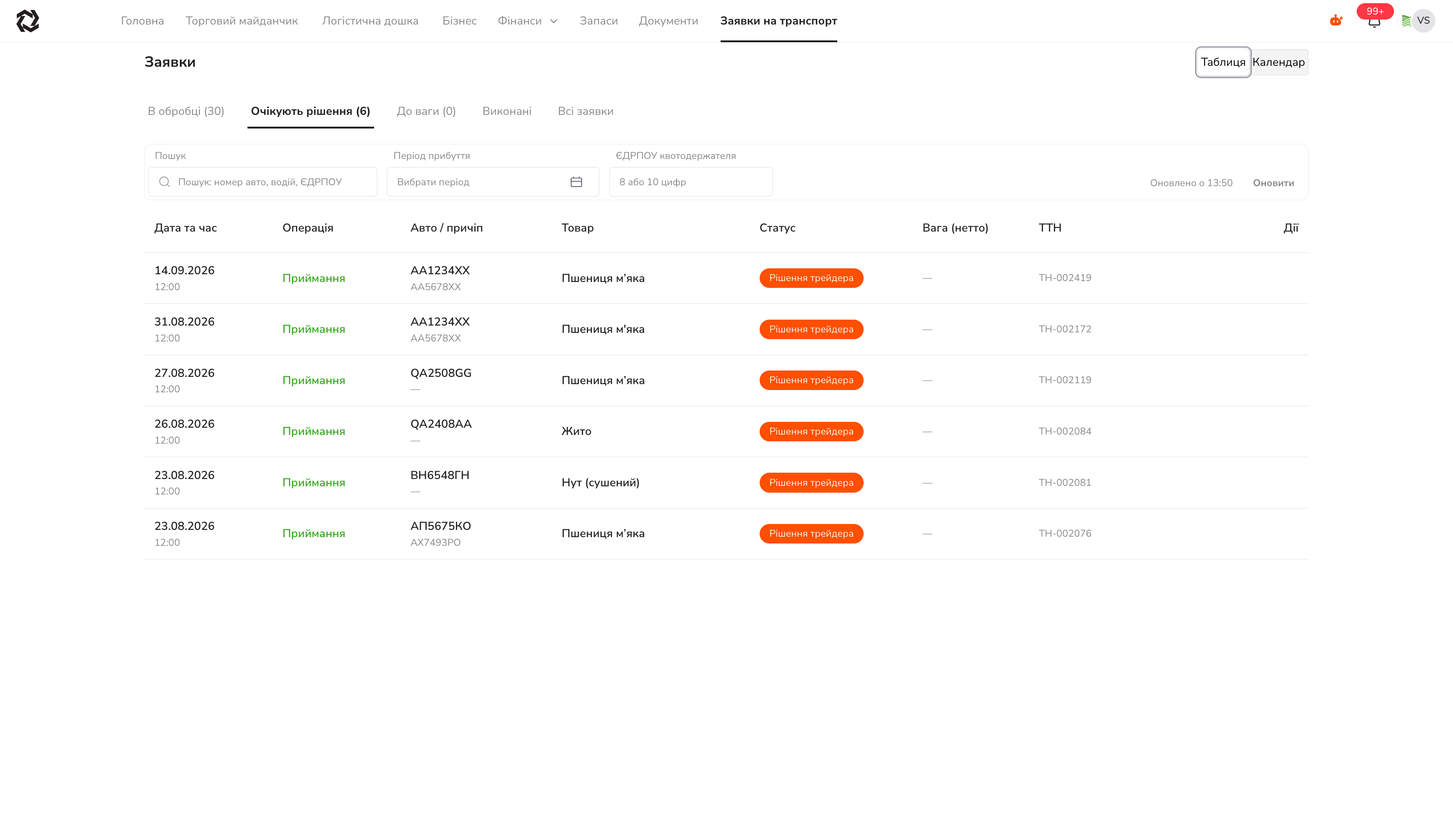
- The trader allows it — they pick a storage and adjust the class if needed. The pass moves to “To weighing”, and the details gain the “The trader allowed acceptance despite the quality mismatch” banner.
- The trader rejects it — the pass becomes “Returned” and the truck is turned away permanently.
Step 2 — weight control
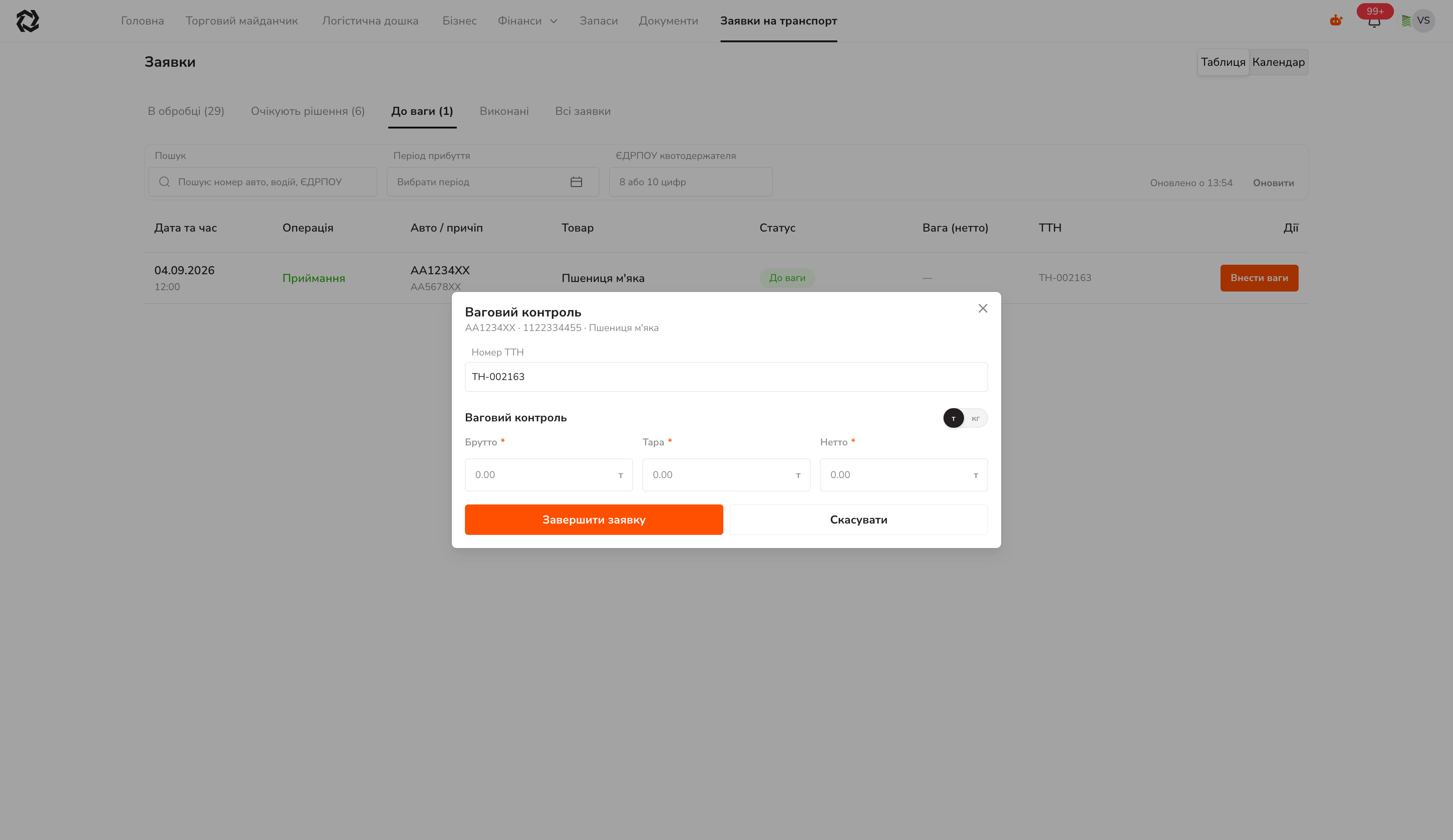
| Field | Note |
|---|---|
| Waybill number | Filled in if already available |
| Gross | required |
| Tare | required |
| Net | required |
| t / kg | The unit switch to the right of the heading |
| Storage | Appears if the terminal has storages configured |
The check is Gross = Tare + Net. Otherwise the form shows “Gross must equal tare plus net” and will not submit.
The “Storage” field has two hints:
- “Assigned by the trader — change it if the cargo goes to a different storage” — when a storage was already chosen in the trader’s decision;
- “The trader did not specify a storage — choose where we unload” — when it was not.
The “Complete appointment” button → the “Appointment completed” toast, the Completed status, and the “Completed” tab. The tonnage drops into the storage balance on the trader’s side.
Personal Telegram
The link is made to your account, not to your company: the company does not enable it, require it, or see it. This is not the driver bot — that one is separate.
- Avatar in the top right → “System settings”.
- The Telegram block, state “Not connected” → Connect.
- A one-time link and a QR code appear: “Open in Telegram” or “Copy link”.
- Open the bot and press Start.
- Return to the tab and press “I have connected — check”.
- Done: your
@usernameand the connection date are shown, and the button changes to “Disconnect”.
Details:
- The link is single-use and lives for about 15 minutes. Every press of “Connect” kills the previous one — an old tab with an old QR code will not work.
- To unlink: the “Disconnect” button on the web, or the
/stopcommand in the chat with the bot. The web state catches up on its own. - Confirmation happens inside Telegram and the web page does not learn about it by itself — the state refreshes when you return to the tab or press “check”.
Limitations of the current version
| Feature | State |
|---|---|
| Creating a pass on desktop | Mobile only: “Transport Appointments” → “Create appointment” |
| Storage account settings | Working hours, capacity, receiving rate and the commodity list are not editable on the web — via support |
| Bulk actions | Quality and weights are entered one pass at a time |